The Phone Declutter: 30 Minutes to a Home Screen That Doesn't Scream
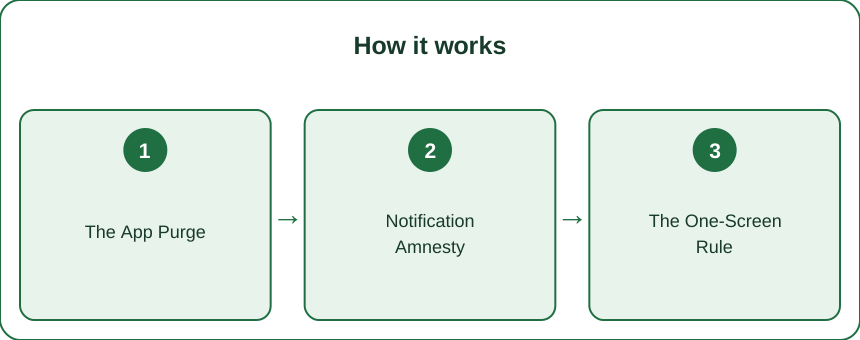
Quick Answer: A phone declutter takes about 30 minutes: delete anything unused in 3 months, turn off every notification and re-enable only calls, messages, and calendar, then keep one home screen of tools with feed apps buried in a folder on page two. Grayscale mode is the nuclear option if you want one more step. Repeat quarterly.
You declutter the closet once a year. Meanwhile you’re carrying a junk drawer in your pocket and opening it dozens of times a day.
The difference is that the closet isn’t actively engineered to get your attention. The phone is — by a lot of very talented people. Which is exactly why thirty deliberate minutes beat willpower.

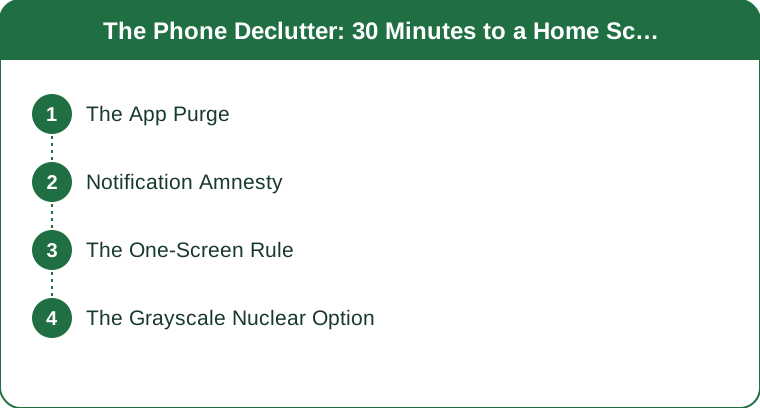
Step 1: How Do You Decide Which Apps to Delete?
Use data, not memory. Both iOS and Android will sort your apps by last used or by size — find that list and work top to bottom.
The rule: anything untouched in 3 months goes. No deliberation, no “but what if.” It’s still in your account, it’s still redownloadable in 40 seconds, and deleting isn’t goodbye — it’s archiving.
A typical phone holds somewhere around 80 apps and sees regular use from roughly a dozen. That gap is the entire project.
Three categories to watch for:
- The aspirational app — the language tutor, the meditation timer, the one you’ll definitely start next month. If it’s been three months, it’s decoration.
- The single-use app — the one from a trip, an event, or a parking lot in another city. Gone.
- The duplicate — three note apps, two weather apps, four photo editors. Keep the one you actually open.
Budget 10 minutes for this step. It’s the fastest win of the whole exercise.
Step 2: What Notifications Should You Actually Keep?
Turn off every single one, then add back only what a real human needs answered.
That usually comes to three: calls, direct messages, and calendar. Possibly a delivery app during a week you’re expecting something.
Everything else — shopping, news, games, social, “we miss you,” “someone you may know” — does not get to tap you on the shoulder. Those notifications exist to bring you back into an app, not to inform you of anything you needed.
Each disabled badge is a tiny resignation letter from the attention economy, and it’s remarkable how quickly the silence stops feeling like you’re missing something.
The fastest route is the notification settings list, which shows every app in one place. Sweep down it once, toggling everything off, then re-enable the three. Ten minutes.

Step 3: What Belongs on the Home Screen?
Tools you chose. Nothing that scrolls infinitely.
Keep page one to the things you open with an intention: camera, maps, notes, messages, calendar, music. These are all apps where you arrive with a task and leave when it’s done.
Move every feed app — social, news, video, shopping — into a folder on screen two. That adds about four seconds of friction between impulse and feed, and four seconds is frequently enough to notice you didn’t actually want to do that.
If you want the advanced version: delete the app entirely and use the browser version instead. Mobile web is deliberately worse than the app, which for once works in your favor.
Five minutes for this step, and it’s the one you’ll notice most tomorrow morning.
What Nobody Tells You About Digital Decluttering
Grayscale is startlingly effective. Both major operating systems have a color filter in accessibility settings, and turning your screen black-and-white makes the whole device visually boring. The saturated icon colors were doing more recruiting than anyone realizes. Try it for a week.
The home screen matters more than app count. Fifty apps you never see are less distracting than three you see every time you unlock. Placement beats deletion.
Deleting an account is different from deleting an app. If a service is genuinely finished for you, remove the account too — otherwise it keeps emailing, and you’ve moved the problem rather than solved it.
Photos and downloads are the real storage hogs, not apps. If you’re decluttering for space rather than attention, start with screenshots — most people have hundreds and want approximately four.
And this decays. Apps reinstall themselves into your life, notifications get re-enabled during setup flows, and the home screen creeps. Quarterly is about the right cadence — put it in the calendar now, while you’re motivated.
Mini FAQ
How often should you declutter your phone?
Quarterly works well for most people. Notification permissions and home screen creep both accumulate over a few months, and a 30-minute quarterly pass is much easier than an annual overhaul.
Does turning off notifications mean you’ll miss something important?
Not if you keep calls, messages, and calendar on. Genuinely urgent things reach people through those three channels — everything else is a marketing decision dressed as an alert.
Does grayscale mode actually reduce phone use?
Many people report it does, and the mechanism is plausible: color saturation is part of what makes app icons and feeds visually rewarding. It’s free and reversible, so a one-week trial costs nothing.
TL;DR:
- Sort apps by last used; delete anything untouched in 3 months. It’s archiving, not goodbye.
- Turn off all notifications, then re-enable only calls, messages, and calendar.
- One home screen of intentional tools; feed apps go in a folder on page two.
- Grayscale mode is the free nuclear option — try it for a week.
- Schedule a repeat every quarter, because this decays quietly.
Thirty minutes against a machine built by a thousand engineers. The thirty minutes wins, as long as you book it again in three months.
Keep Reading
This article is for general informational and styling purposes only. Fit, sizing, and product availability may vary.